
Multiple Renamer Profiles
Up until version 5.3.0, tinyMediaManager had one global renamer setting per module (movies and TV shows). This meant you could only ever have one set of rename patterns active at a time - fine for most users, but a real limitation if you wanted to maintain different naming schemes for different parts of your collection or switch between presets quickly.
Starting with v5.3.0, you can now create and manage multiple renamer profiles for both movies and TV shows.
What Are Renamer Profiles?
A renamer profile bundles all rename-related settings - folder patterns, file patterns, cleanup options, and more - into a single named configuration. You can create as many profiles as you need and switch between them without having to reconfigure everything each time.
For example, you might have:
- A Default profile optimized for your home theater setup
- An Anime profile optimized for anime series with special folder and file naming conventions
- A Flat TV show profile that keeps all episodes in a single folder instead of creating season subfolders
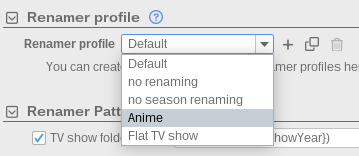
The “Default” Profile
When you upgrade to v5.3.0, all your existing renamer settings are automatically migrated into a new profile called “Default”. This ensures a seamless transition - nothing breaks, and your current configuration is preserved exactly as it was.
The Default profile also serves a special purpose: wherever tinyMediaManager needs renamer settings internally but does not give you direct control over which profile to use, the Default profile is used automatically. A good example of this is the exporter - when you export your media library to HTML or other formats, the exporter relies on certain folder and file naming patterns to locate artwork and metadata. These patterns are always taken from the Default profile, since the exporter needs a consistent configuration regardless of which renamer profile you currently have selected.
Note: Please review your renamer settings after upgrading to v5.3.0 to make sure everything was migrated correctly. All renamer-related settings have been moved to the Default profile automatically.
How to Create and Use Profiles
Creating a new profile is straightforward. Open the renamer settings for movies or TV shows, and you will find a profile selector at the top. From there you can:
- Switch between existing profiles
- Create a new profile (which starts as a copy of the currently selected one)
- Rename or delete profiles you no longer need
Each profile maintains its own complete set of rename patterns and options. Changes you make in one profile do not affect any other.
Why This Matters
If you manage media for multiple media centers - say Kodi on your living room TV and Plex on your tablet - you no longer have to manually tweak rename patterns every time you switch. Simply create a profile for each setup and toggle between them.
It also makes it much easier to experiment with new naming schemes. Want to try a different folder structure but are not sure it will work? Clone your current profile, make your changes, and test it out. If it does not work as expected, just delete the test profile - your original configuration is untouched.
A Quick Recap
- Multiple renamer profiles for movies and TV shows (v5.3.0)
- Existing settings are automatically migrated to the Default profile
- The Default profile is used as a fallback wherever profiles are not directly selectable (e.g. the exporter)
- Create, rename, delete, and switch profiles from the renamer settings panel
Share on
Twitter Facebook Reddit LinkedIn