
Custom table columns
Up until now, the movie, movie set and TV show tables in tinyMediaManager came with a fixed set of columns. If you wanted to see a piece of data that was not among them - a note, a specific rating, a custom file information or anything else tinyMediaManager knows about - your only option was the details panel.
Starting with v5.3.5, you can now add your own freely configurable columns to the movie, movie set and TV show tables. The content of these columns is generated from your own JMTE patterns, so you decide exactly what is shown and how it is formatted.
What Are Custom Columns?
A custom column is a column you define yourself. You give it a title and one or more JMTE patterns, and tinyMediaManager fills the column with whatever the pattern renders for each row. This lets you surface data that is already in your library - but which the built-in columns do not show - in exactly the shape you like.
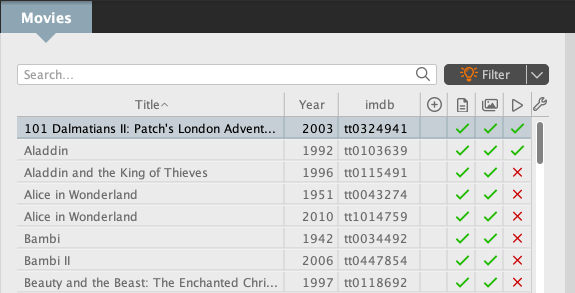
A simple example: a column that shows the IMDb id.
${movie.imdbId}
How to Create and Configure Columns
You configure custom columns in the settings:
- Movies: Settings → UI settings → Custom columns
- TV shows: Settings → UI settings → Custom columns
- Movie sets: Settings → Custom columns
The settings list shows one row per column with its title, the JMTE pattern(s) and an edit button. From here you can:
- Add a column with the
+button - Edit an existing column (title and patterns) via the edit button
- Reorder columns with the up/down buttons - their order here is their order in the table
- Remove a column with the
−button
The title of a column is optional. If you leave it empty, tinyMediaManager falls back to a placeholder like Custom column 1, Custom column 2, and so on. The JMTE pattern, however, is what actually provides the content, and at least one pattern is required. While editing, the JMTE explorer button helps you to find the right tokens and to test your pattern.
Enabling a Column in the Table
Newly created custom columns are hidden by default. To show one, open the column-selection popup (the small arrow at the right end of the table header) and tick the column. A custom column that does not have a pattern configured yet is greyed out there and shows a tooltip reminding you to configure it first.
Because each column carries a stable internal identifier, you can freely add, rename, reorder or remove columns without losing the width or the visibility you have set for the others.
One Pattern per Row Level
Depending on the table, a custom column can carry more than one pattern, because the tables are not flat:
Movie table
The flat movie table uses a single Movie pattern, rendered for every movie row.
Movie set table
The movie set table is hierarchical and therefore has two levels:
- the Movie set pattern for the movie set rows - a set row has no movie attached, so only
${movieSet...}properties can be used here - the Movie pattern for the nested movie rows
A column is available in the movie set table as soon as at least one of the two patterns is set.
TV show table
The TV show table is a three-level tree, so a column can have a pattern for each level:
- the TV show pattern for the show rows, e.g.
${tvShow.title} - the Season pattern for the season rows, e.g.
${season.season} - the Episode pattern for the episode rows, e.g.
${episode.title}
Any combination of the three is allowed; a level without a pattern simply stays empty.
Full JMTE Patterns Only
One thing to keep in mind: custom columns use the full JMTE syntax, not the shortened renamer tokens. The short tokens you may know from the renamer (like ${title}) are not expanded in a custom column. Always use the full path, for example:
${movie.title}or${movie.title} (${movie.year})${movieSet.title}${tvShow.title},${season.season}or${episode.title}
You can combine tokens, use conditions and the named renderers just like anywhere else JMTE is used. Take a look at the JMTE documentation for the complete syntax and the JMTE explorer in the settings panel to explore the available data of every entity.
Why This Matters
Custom columns finally let you bring the data that matters to you into the main tables. Some ideas:
- A column showing
${movie.note}to see your personal notes at a glance - A column combining certification and runtime for a quick sanity check
- A TV show column using
${episode.title}next to a season column with${season.season} - A movie set column that summarizes information across the set
Since the pattern is up to you, the only real limit is the data tinyMediaManager has stored for your media.
A Quick Recap
- Freely configurable columns for the movie, movie set and TV show tables (v5.3.5)
- Content is generated from your own full JMTE patterns
- Add, rename, reorder and remove columns in the settings
- One pattern per row level (movie; movie set + movie; TV show + season + episode)
- New columns are hidden by default - enable them via the table’s column-selection popup
- Short renamer tokens (e.g.
${title}) are not expanded - use the full JMTE paths instead
Share on
Twitter Facebook Reddit LinkedIn